
Book a space or service
Choose what you need, pick an available time, and confirm.
Before you begin
- Select the building where you want to book.
- Have any required name and contact details ready.
- For paid services, use a payment method offered at checkout.
Step by step
 View full screen
Find the service
Open Booking. Use a category to narrow the list, then open the room, facility, class, or service you need.
Choose when and where
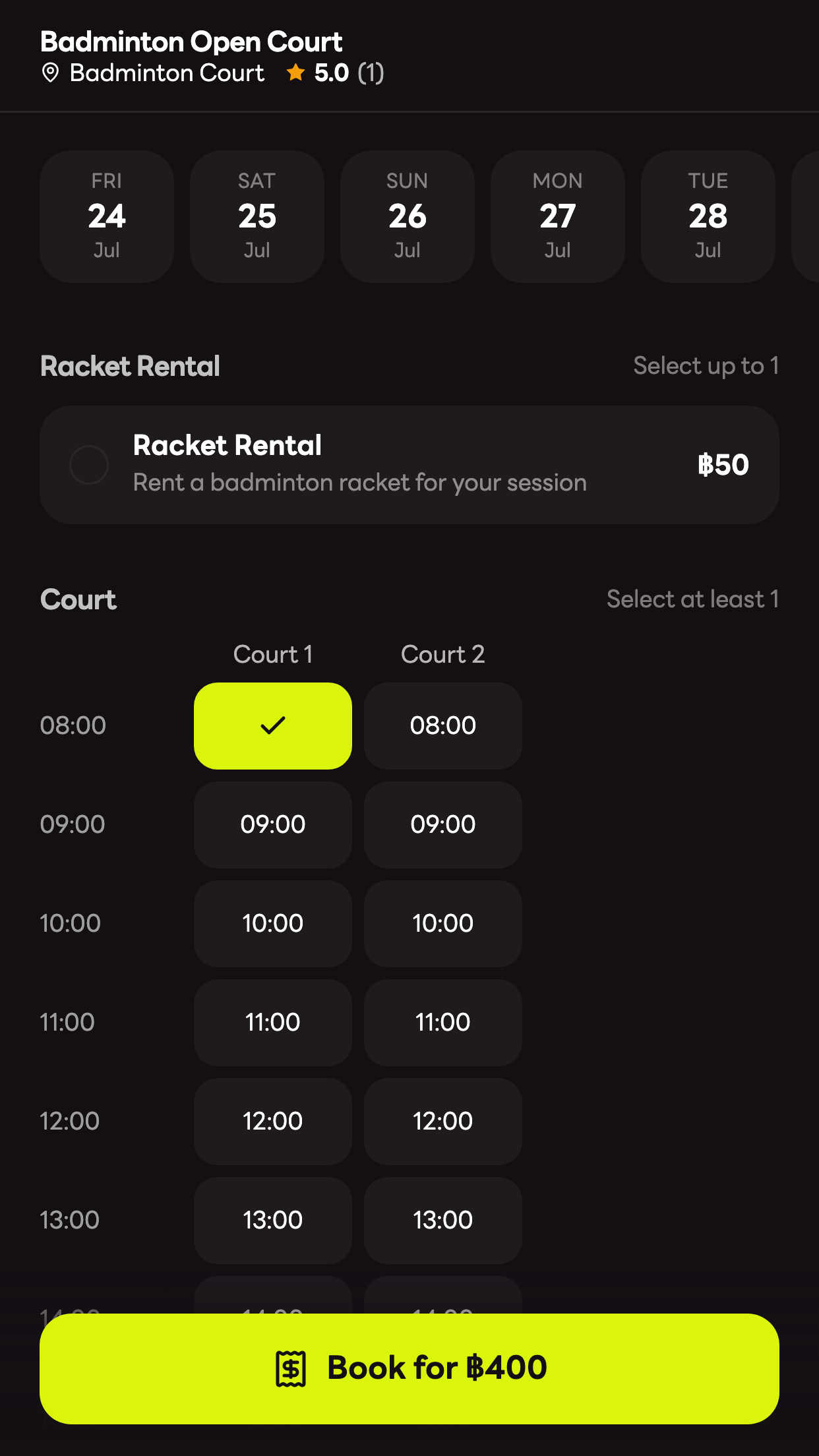
Complete the fields shown. A fixed session already has a schedule; other services let you choose a date, time, duration, or provider. For a grid, select an available cell under the resource you want.
Complete the options
Choose the required options and enter a booking name if asked. Review any add-ons before tapping Book for free or the button showing the price.
Review and confirm
At checkout, check the booking summary and contact details. Complete the offered payment flow if there is a charge, then wait for the booking confirmation.
Find it in Activity
Open Activity and select your booking. Check its location, current status, and any available check-in or access actions.
You’re ready when
The confirmed booking appears in Activity with the selected service, schedule, and options.
Troubleshooting
- The booking button is unavailable
- Complete all required fields and options. If Booking limit reached appears, your membership's concurrent booking limit is full. Check Activity or contact the building team.
- My preferred time cannot be selected
- Sold-out slots cannot be booked. Choose another available time or resource. If no services appear, check the building and category; the team may not have active services available.
Common questions
- Why does each booking form look different?
- The building configures each service's required fields, choices, time slots, and capacity. Only the relevant steps appear for that service.
Still stuck? Tell support what happened and which step you reached.
Email support