
The person matters.
Members use Hik face authentication. Visitors use their personal BookingAccess QR. The door must validate both the assigned resource and the booking window.
One app.
A role for every screen.
Floor overviews, door access and in-room controls. Set the role on each device, in the same Spaze project.
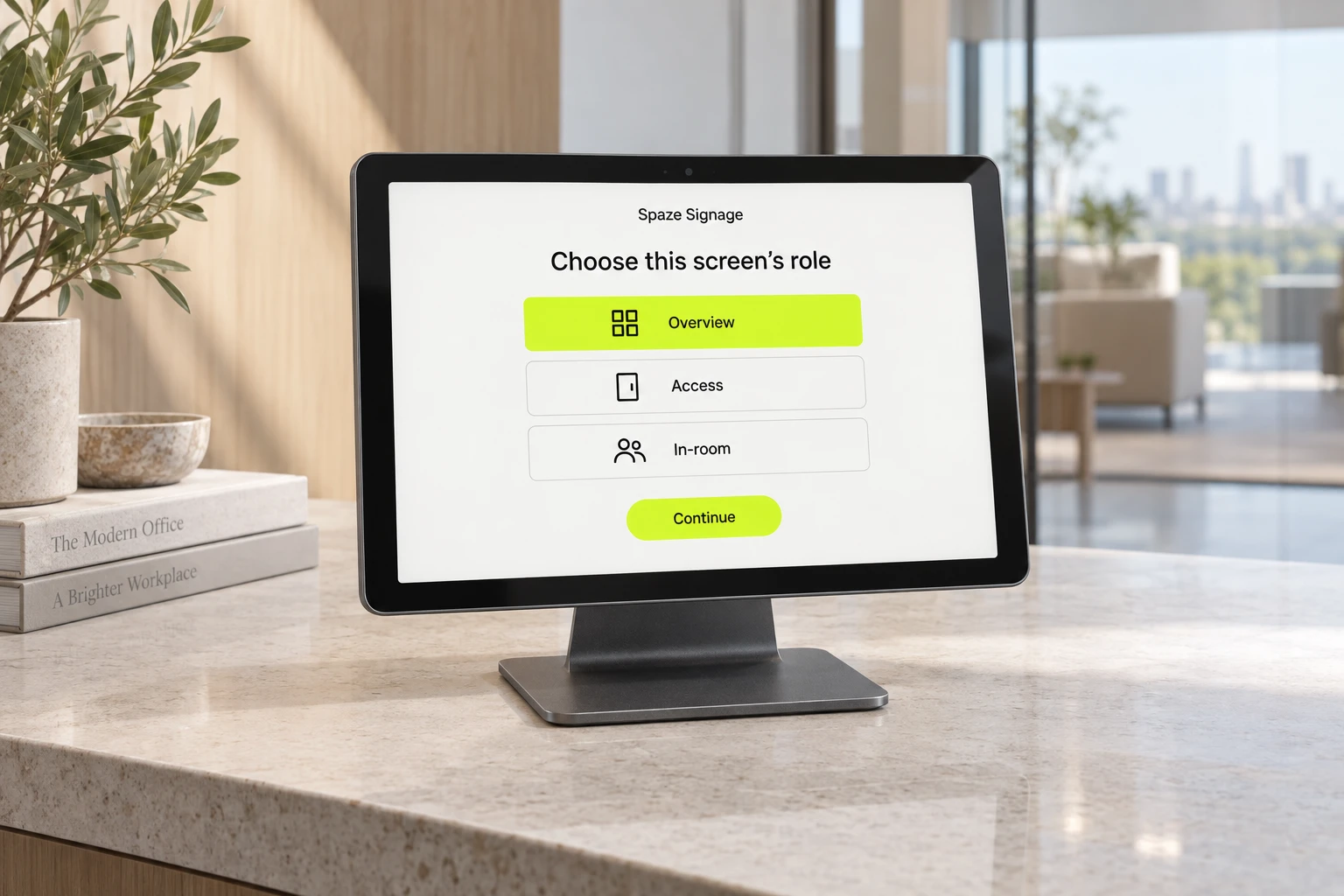
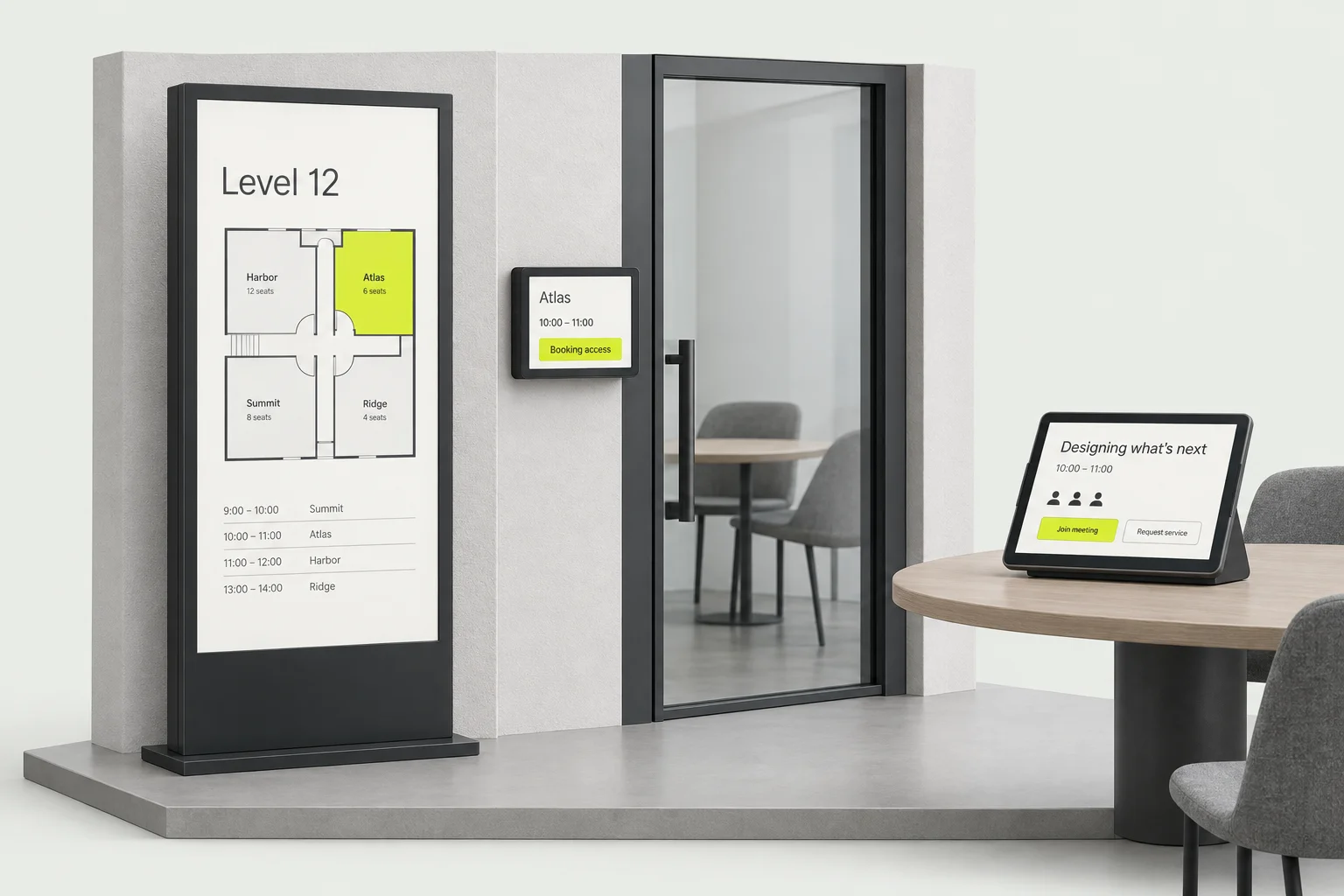
One app for the floor, doorway or meeting. This is a product preview; check the rollout guide before installation.
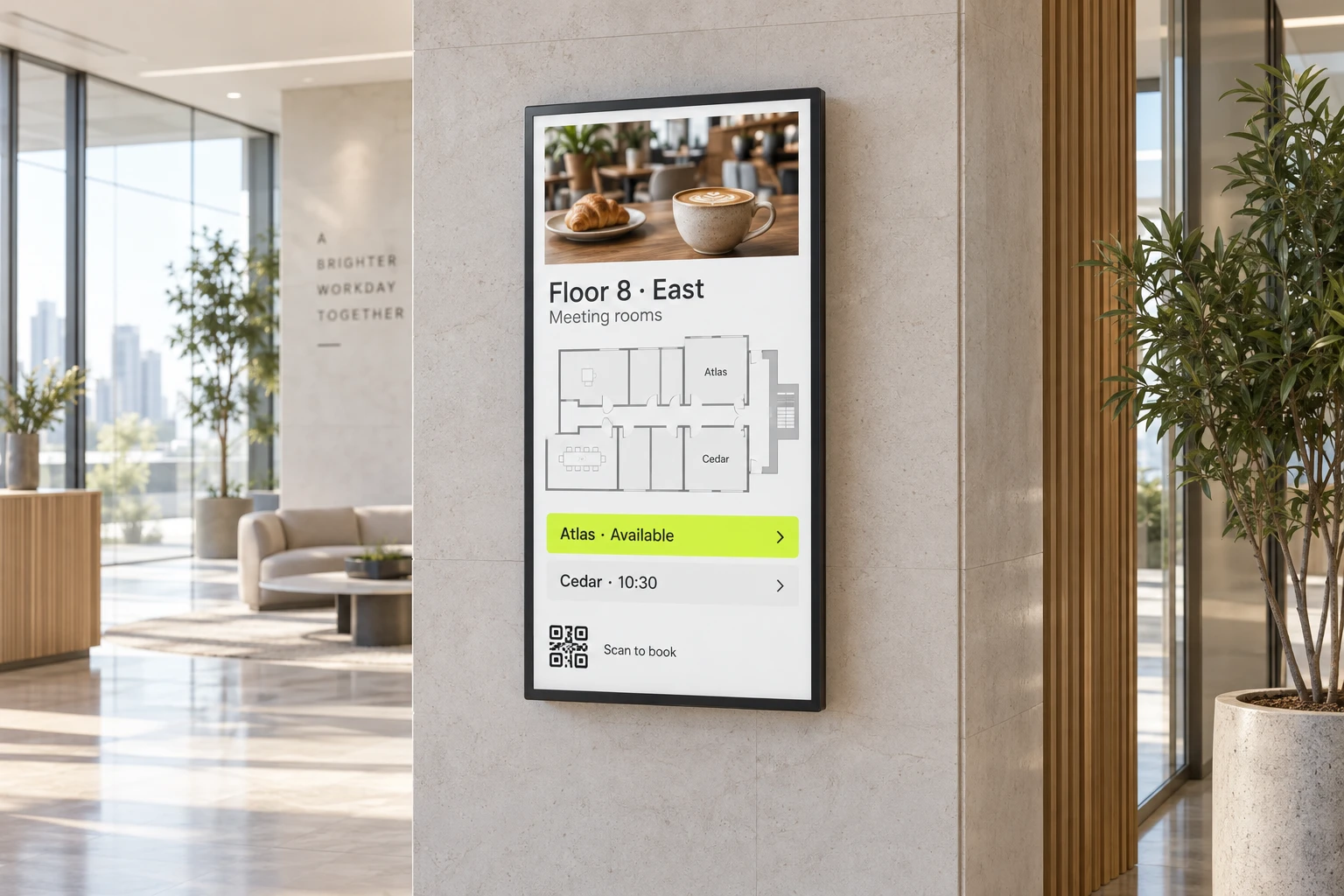
Real floors, room status and today’s schedule in one read-only view. Show the plan, the rooms, both, or just announcements.
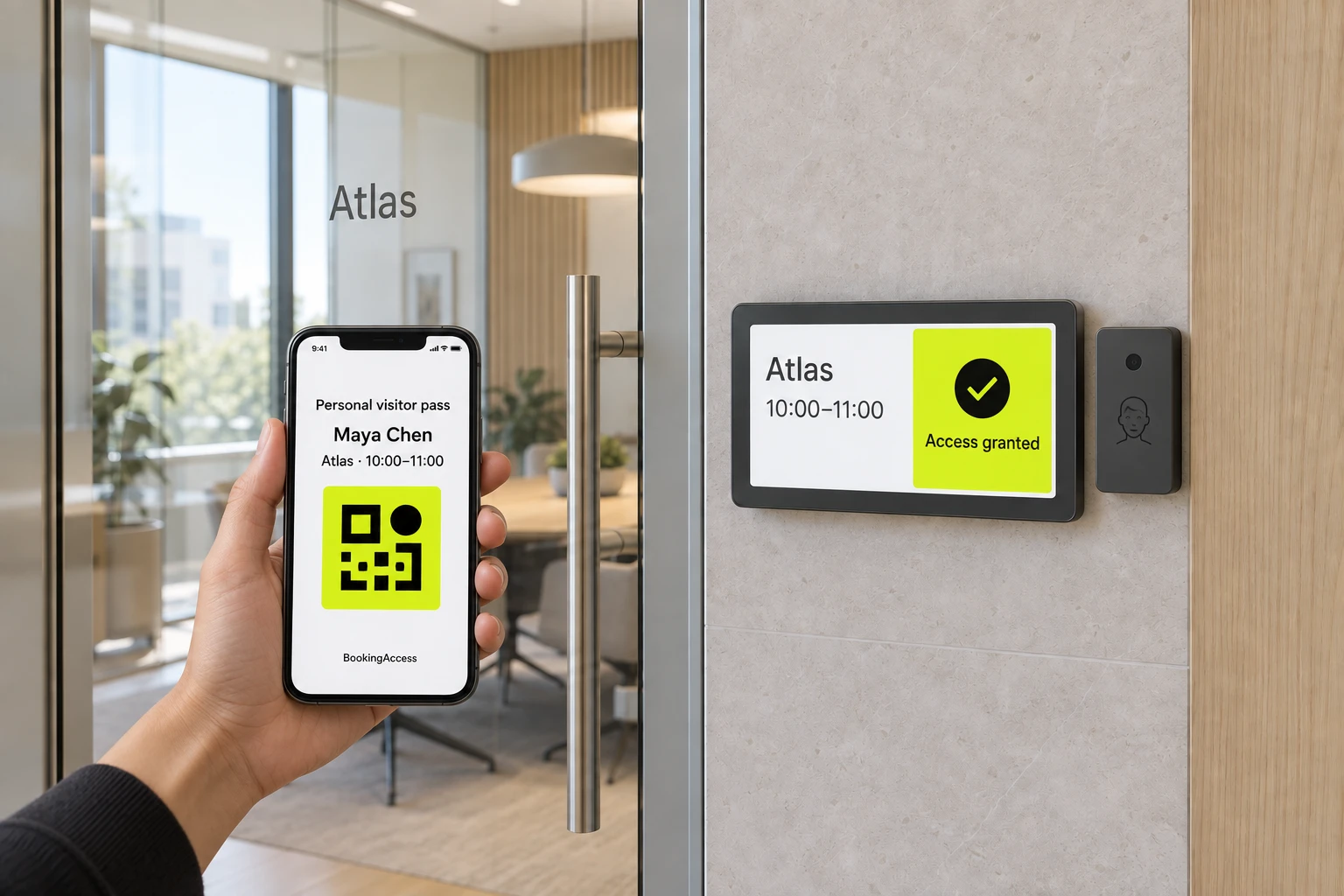
A focused doorway experience for one room. Visitors use their personal BookingAccess QR; members use the Hik face reader. Entry is limited to the booking window.
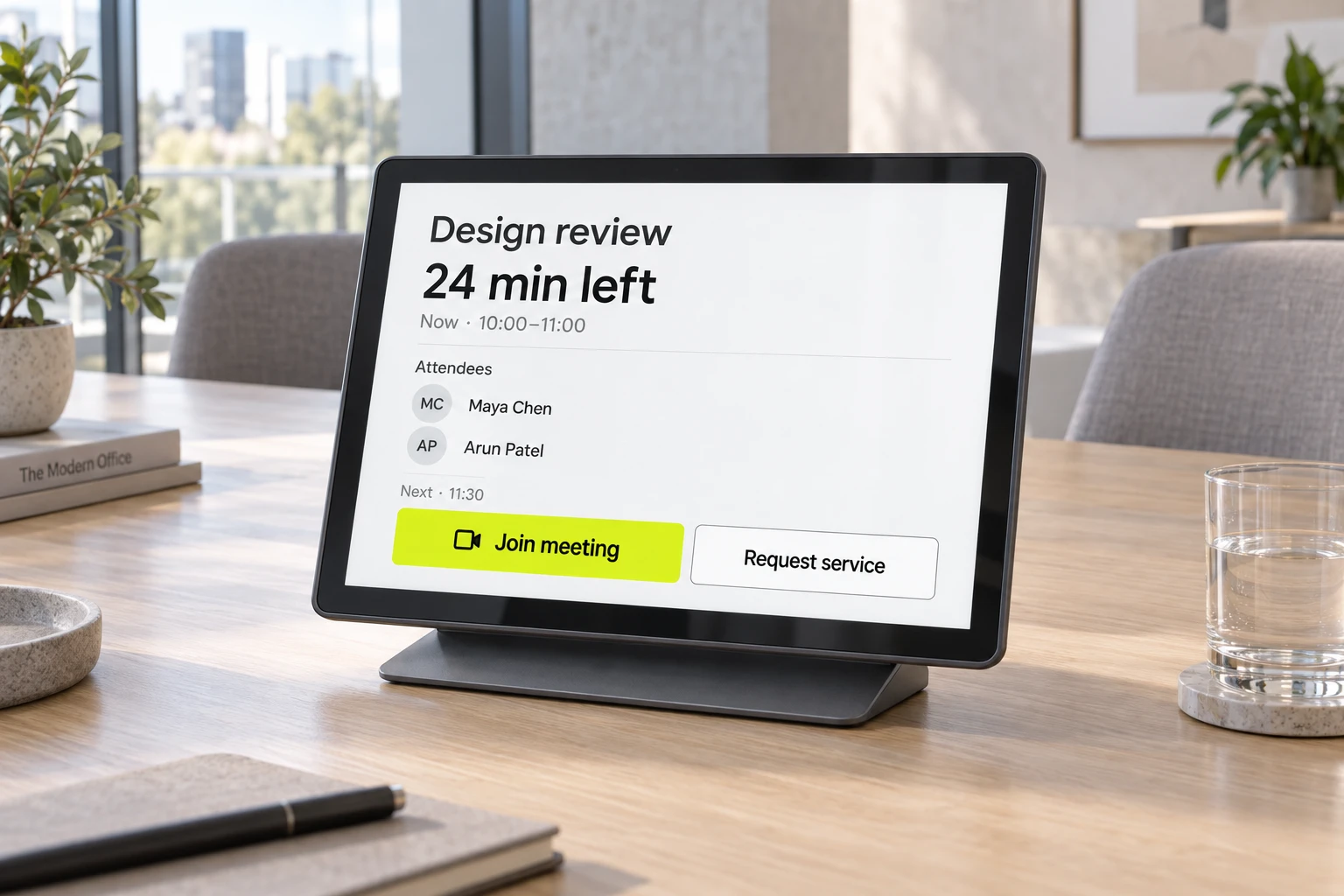
Meeting title, time left and attendees for this room. Request a service or join Teams or Google Meet when the event includes a meeting link.
Product design preview · generated concepts, not installed-device screenshots. Rollout checklist
Connect your project, choose the screen’s role and save its settings. One Tauri app. No separate installs.
Your project. Sign-in or kiosk token.
Overview, Access or In-room. Assign its place.
Portrait or landscape, locked to this device.
Overview: plan, rooms and ads, independently.
Keep the settings and credentials after restart.
One app, not three installs. Access and In-room select one resource. Overview can pin a floor or rotate the real floors and zones.
Ready again after restart. Saved configuration skips the wizard. An authorised hidden gesture / PIN route reopens it—not a shared installation URL.
Try Overview, Access and In-room in Signage Studio. Change the layout, switch between calendar and list, and bring your brand to the screen.
Try Signage StudioA ready-to-use demo with sample schedules and simulated hardware. Your choices stay in this browser, not on a real device.
Portrait screen16:9 video at the top. Keep its full frame.
Landscape screen9:16 video at the left. Never a cropped top band.
Access & In-roomNo ads. Keep attention on the door or session.
Compare what each mode shows—and what it leaves out.
Scroll across to compare all modes.
| At a glance | Overview | Access | In-room |
|---|---|---|---|
| Its place | Rotate real floors or pin one | One resource · one doorway | One resource · this session |
| What people see | Floor plan, room status and today’s schedules | This door’s booking window and access result | Title, time left, attendees and next session |
| QR purpose | Scan to book · member booking URL | Personal visitor BookingAccess | No QR |
| Door control | None · read-only | Open or deny within the booking window | None |
| Meeting & services | No join or service controls | No in-room join | Event-link join and verified service requests |
| Advertising | Optional · orientation-specific fit | Off | Off |
Members use Hik face authentication. Visitors use their personal BookingAccess QR. The door must validate both the assigned resource and the booking window.
Show employee first and last names for the current one-hour slot—up to five people. Keep company names, visitors, QR and lock controls off this display.
Spaze bookings and ingested Outlook or Google schedules meet the building’s actual floors, zones and resources.
Today’s schedule, meeting titles and bookers.
The right project, floor, zone and room.
Only the information and actions that belong there.
Join an existing event. Teams or Google Meet appears only when the event has a meeting link. Graph write-back stays with booking work, not Signage.
Request a real service. Reuse configured automations where they actually deliver the request. A tap alone is not an acknowledgement.
Choose a screen’s role, explore layouts and add your brand in Signage Studio. Preview it with sample schedules before planning your rollout.
One Spaze project
Generated concept · not an installed-device photograph.