
Sign in to Spaze
Get from the welcome screen to your building.
Before you begin
- Choose your language on first open.
- Have your account email or phone number and password ready.
- Keep access to the inbox or phone used for verification.
Step by step
 View full screen
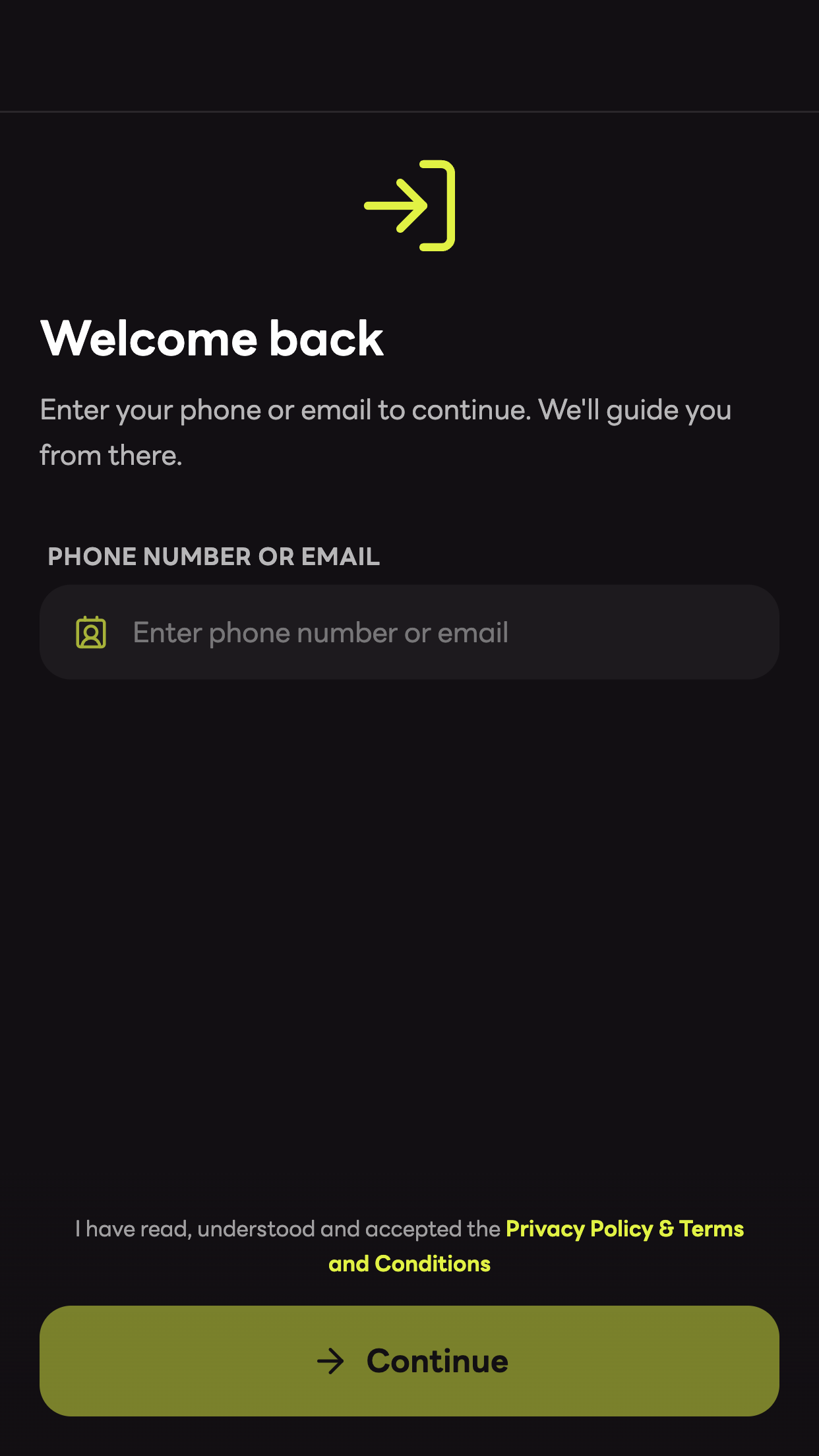
Enter your account
On Welcome back, enter your phone number or email and tap Continue. Use the contact linked to your existing account.
Enter your password
Use the eye button if you need to check what you typed, then tap Sign in.
Verify when asked
Enter the six-digit code sent to the destination shown on screen, then tap Verify. This step appears only when your sign-in requires it.
Choose your building
After signing in, you return to Home or the building picker. Select the place you want to use before opening Access or Booking.
You’re ready when
You are signed in and can continue in the selected building.
Troubleshooting
- The password is not accepted
- Check the email or phone number first. If you have forgotten the password, use Forgot password? on the password screen. Follow the recovery steps and sign in with the new password.
- The verification code is rejected
- Check that you are entering the code for the sign-in currently on screen. Use Resend code when the countdown finishes. If the session is invalid, return to sign-in and start again.
Common questions
- Why am I asked to wait?
- The sign-in service can limit repeated password attempts. Follow the on-screen waiting message or the offered password-reset action.
Still stuck? Tell support what happened and which step you reached.
Email support